Video consultations - advice for patients

Having trouble joining?

You may not be using a compatible or up to date we browser – use these links to get Google Chrome (Android or Windows), Safari (Apple) or Microsoft Edge for free and make sure you have the latest versions.

Camera/microphone/audio not working?

Our system allows you to “test your equipment” to check if the camera, microphone and audio on your device are ready for your video appointment.

If this test identifies any issues you can try the following:

  • Make sure your media volume is turned up and you are not muted
  • Allow access to your microphone and camera when prompted
  • Check the site’s permission as follows:
  • Click on this symbol on your browser’s address bar:

Image shows the address bar from a web browser. Circled in red, there is symbol depicting two parallel, horizontal lines, with a circle on the left end of the top line and the right end of the bottom line.Image shows the address bar from a web browser. Circled in red, there is a symbol of a closed padlock.

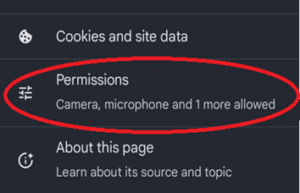
  • Select the permissions option:

Image shows a list of three options from a settings menu. The top one is "cookies and site data". The middle one is "Permissions". The bottom one is "about this page". The middle option of the three has been circled in red.

  • Make sure all 3 of these options are set to “Allowed”:
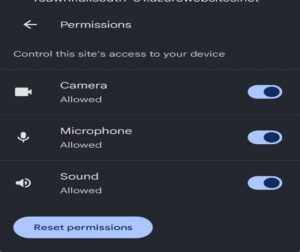
Image shows a list of three options from a permissions menu. The top one is "camera". The middle one is "microphone". The bottom one is "sound". To the right of all three options, there is a slider to enable or disable each option; all three are shown as slid to the right to depict that these settings have been enabled.

Still having trouble?

  • Close your browser and re-open the consultation link
  • If the issues continue, your clinician may call you by phone instead

Need additional support with IT?

Spark Somerset are a charity who support our communities in a number of ways, including free digital advice and drop-ins throughout the county.